Appearance
Devices and enrollment
Employees use the Klipsu app in enterprise mode. You give them the Sentinel server address and an enrollment code, or push the configuration with your MDM.
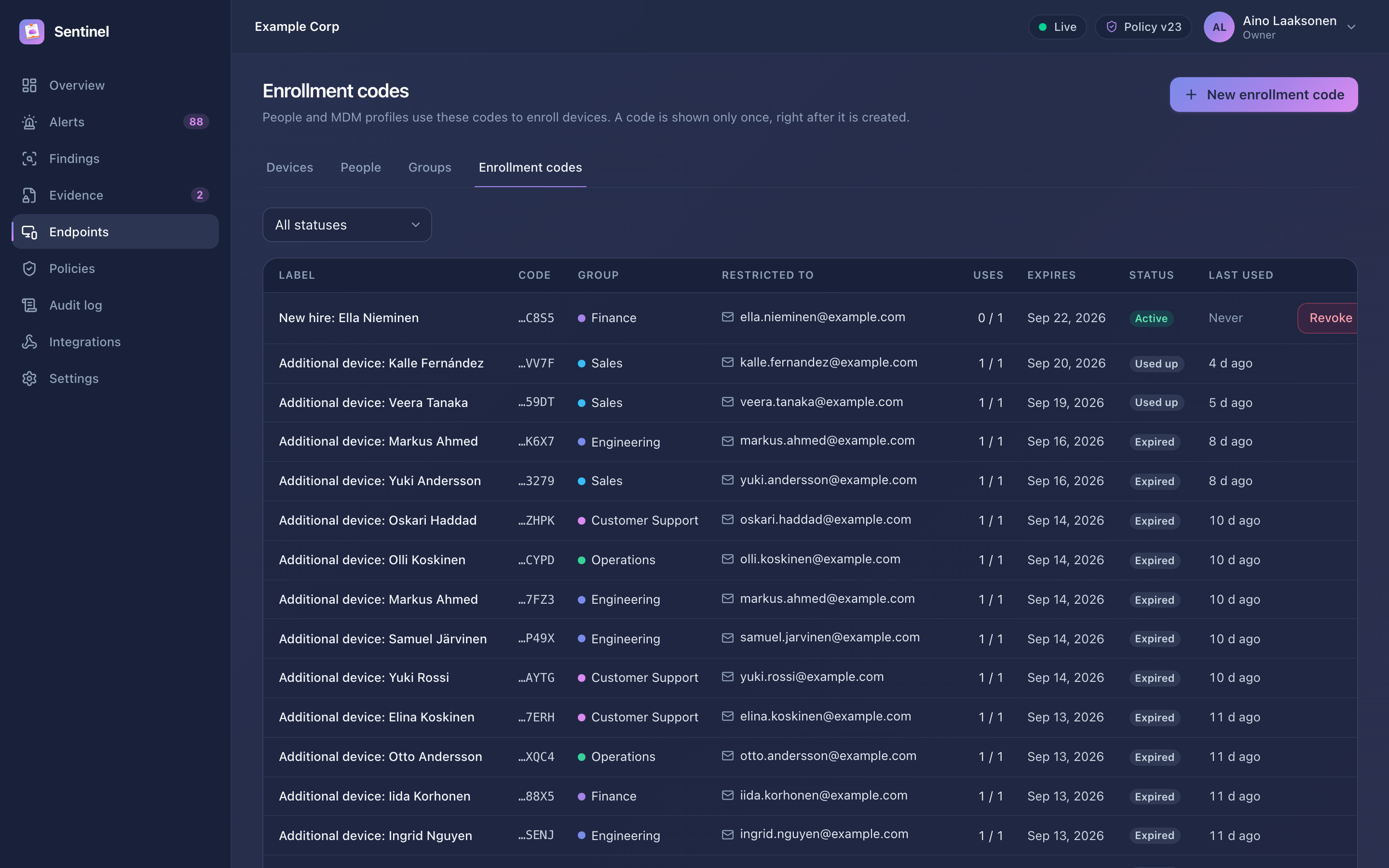
Create an enrollment code
- Go to Endpoints → Enrollment and choose New code.
- Fill in:
- Label, for example Finance laptops.
- Group that people join when they enroll with this code (optional).
- Allowed email domains for a shared code, or a bound email for a personal code (typically for someone's additional device).
- Maximum uses and expiry (1–365 days).
- Copy the code. It is shown once, because Sentinel stores only a hash. The dialog also shows an MDM configuration snippet with
sentinel_url,policy_key_fingerprintandenrollment_codefor zero-touch deployment.
How employees enroll
- The employee chooses Work account in the Klipsu app and enters the server address.
- The app shows your organisation name and policy key fingerprint for confirmation (MDM deployments verify the fingerprint silently).
- The enrollment page asks for the code, the work email and consent to the managed-device notice.
- The device appears in Endpoints → Devices and starts checking in.
IMPORTANT
A shared code enrolls a person's first device only. Additional devices for someone who already has one need a personal (bound) code, or pairing from their existing device. This prevents someone with a shared code from adding a device to a colleague's account.
Revoke codes you no longer need with Revoke. Used-up and expired codes stop working automatically.
Devices
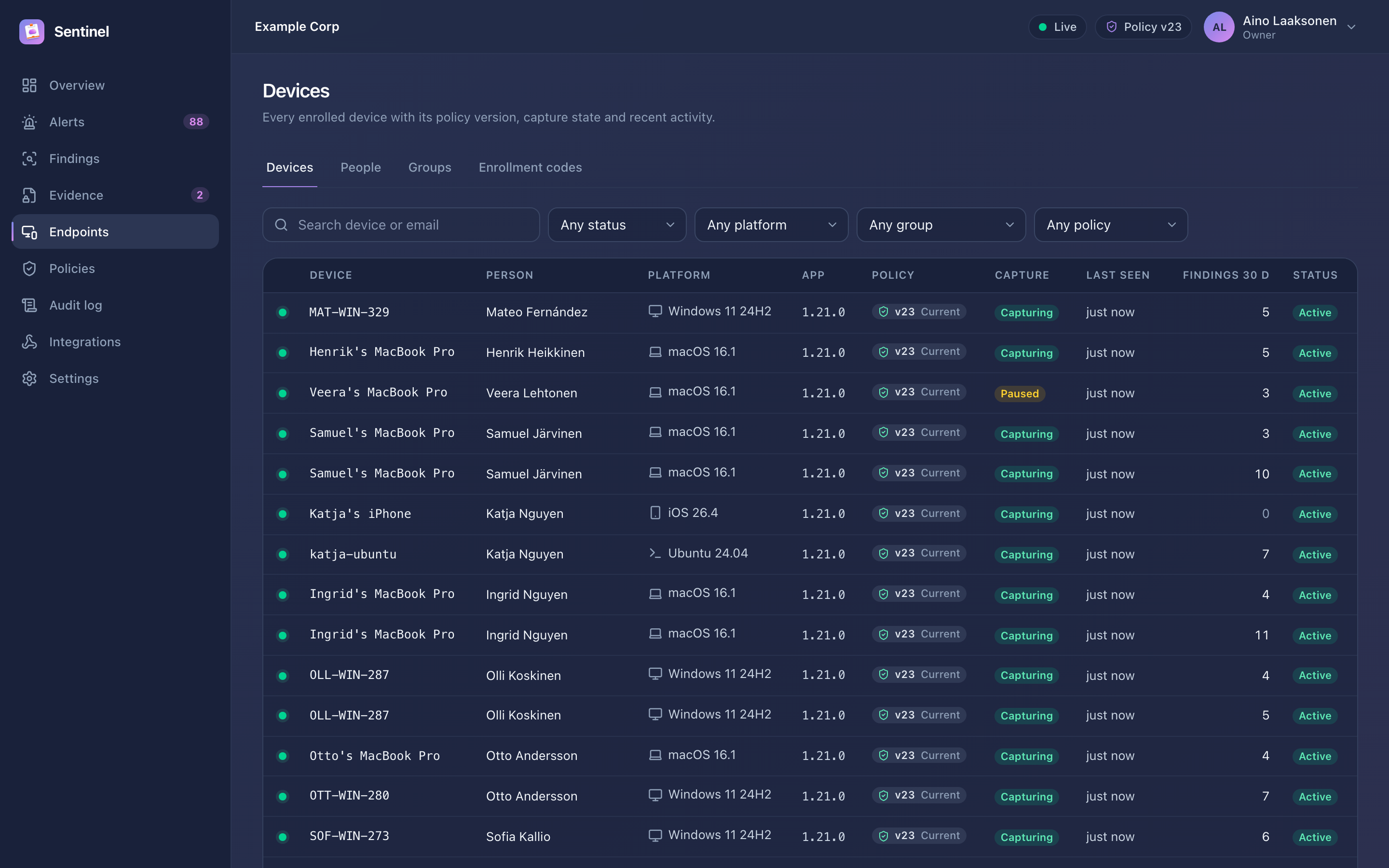
Endpoints → Devices lists every device with platform, app version, last check-in, policy version, capture state and the amount of sealed evidence stored on it. Filter by status (online, offline, revoked), platform, group, person or policy (current, stale).
Revoke a lost or stolen device from its detail page, with a reason. The device can no longer sync or report, pending evidence requests for it become unavailable, and the person's other devices are unaffected.
People and groups
- Endpoints → People shows each enrolled person with their devices, storage, findings and open alerts. You can change the display name and group, suspend a person (their devices stop syncing, detection continues) and reactivate them.
- Endpoints → Groups organise people for rule scoping and filtering. Deleting a group moves its people to no group; a group used by rules or enrollment codes cannot be deleted.